EverQuest Alerts & Triggers
Spoken call-outs, on-screen text, chimes, and countdown bars, all driven by your game log and running on your own PC.
1. About the tool
The Alerts tool turns any line of chat into a reaction you can see and hear. You pick what to react to (a buff fading, a charm break, a tell, a mob name appearing in the spawn feed), and you pick what happens when it does: a natural neural voice that calls out the words, a chime, a flash of on-screen text over the game, or a slim countdown bar with a spoken warning before it ends. The full library ships with 1,300 ready-made triggers you can switch on, and you can build your own from scratch or import packs you already trust.
2. How it works
BasaBots reads your EverQuest chat log file in real time. Every line the game writes there, including system messages, combat events, your party's chatter, and tells, gets pattern-matched against your active alerts the moment it lands. Matches trigger your configured reactions.
Logging must be turned on in-game for any of this to work. The game ships with logging off by default, so the first time you launch BasaBots:
- In EverQuest, type
/log onand press Enter. You'll get a confirmation in the chat window. - That's it. The log file starts streaming under your EQ install folder, and BasaBots picks it up automatically.
If you forget, the app shows a banner reminding you the log isn't being written. Logging stays on across sessions until you explicitly turn it off, so this is normally a one-time step.
3. UI overview
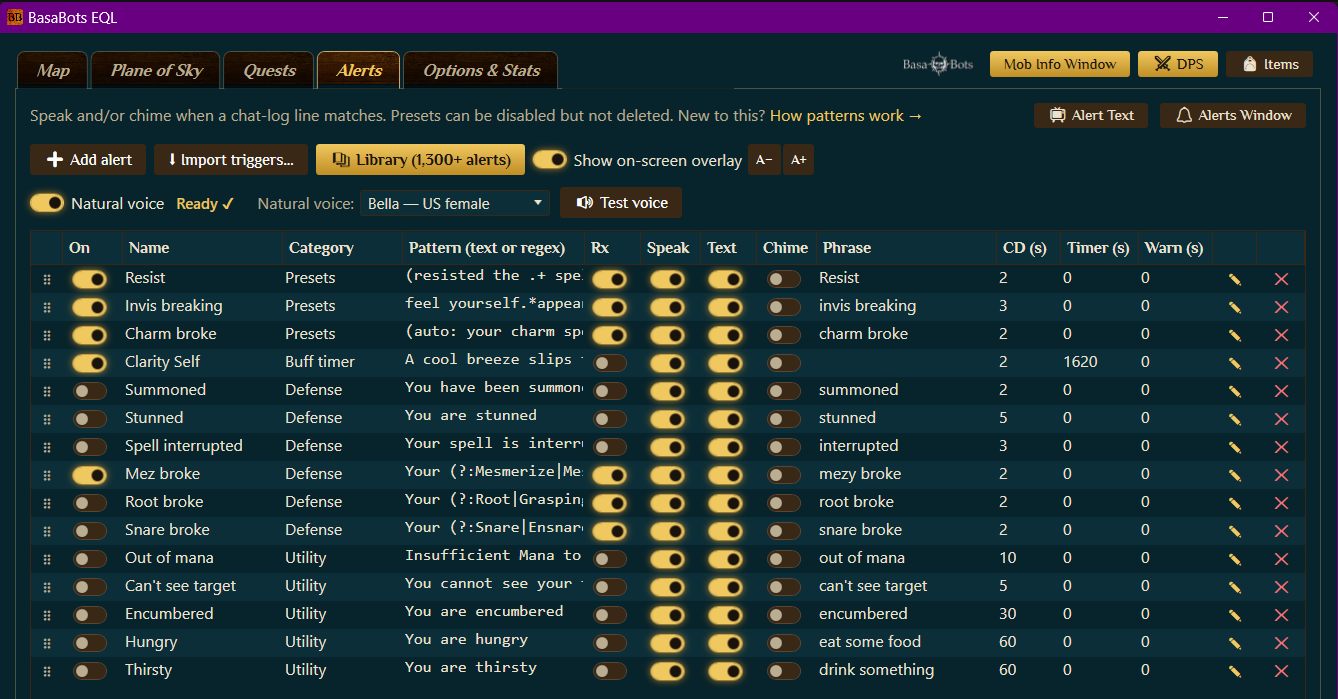
The Alerts tab has three regions: a toolbar across the top, a voice settings row, and your active alert table.
Toolbar

- + Add alert: opens the New Alert dialog so you can build a custom alert from scratch.
- Import triggers...: pulls in a trigger pack file. Supports
.gtp,.xml, and.tgf.gz. Imported alerts land in a new category so you can compare them against the built-in library before keeping them. - 📚 Library: opens the searchable preset library. Filter by class, purpose, or spell. Each row has a + button that drops it into your active list.
- Show on-screen overlay: the master switch for the on-screen text and countdown bars. With this off, you'll still hear voice and chimes but nothing draws over the game.
- A- / A+: shrink or grow the on-screen overlay text.
- Alert Text (top right): pops out the floating on-screen text window so you can drag and dock it.
- Alerts Window: pops the alerts table out into its own window. Useful on a second monitor.
Voice settings row

- Natural voice toggle: turn the neural voice on or off. The label next to it says Ready ✓ once the voice model is loaded and cached on your PC. Loading happens once per voice and never touches the internet again.
- Natural voice picker: choose which voice speaks (Bella, etc.). Each option ships with a name, accent, and gender hint.
- Test voice: speaks a sample line so you can hear the selected voice before relying on it mid-fight.
Alert table columns

Each row in the table is one alert. Reading left to right:
- Drag handle (the dots on the far left): drag a row to reorder. Order matters for display, not for matching.
- On: toggle this alert. Amber means it's watching the log.
- Name: what you call it. Edit by clicking the pencil at the end of the row.
- Category: the folder this alert lives in: Presets, Buff timer, Defense, Utility, Raid, or any custom category you've made.
- Pattern (text or regex): the actual text or regex the alert watches for.
- Rx: if on, Pattern is treated as a regular expression; off means literal text. Toggle this when you write the pattern.
- Speak: speaks the Phrase out loud.
- Text: flashes the Phrase on-screen over the game.
- Chime: plays a chime sound.
- Phrase: the words spoken or shown. Capture groups from the Pattern can be substituted in here (more on that in the Advanced section).
- CD (s): cooldown in seconds. After firing, the alert ignores further matches for this many seconds. Keeps a burst of "your charm broke" lines from spamming you.
- Timer (s): if set, a countdown bar of this duration starts when the alert fires.
- Warn (s): if a Timer is set, the warning announcement fires this many seconds before zero.
- Pencil icon: opens the full editor for this alert.
- X icon: deletes the alert.
Most of these are editable right in the table. Click a Name, Category, Pattern, Phrase, CD, Timer, or Warn cell to change it on the spot, and tap the Rx, Speak, Text, or Chime toggles directly. You only need the pencil editor for the deeper options like styling, sounds, and the end-early pattern.
4. Basic use: add your first alert
The fastest way to get value is to take a preset from the library. We'll add Invisibility Fading, which speaks "invis fading" when the game says You feel yourself starting to appear. Useful for any class that drops invis between mobs.
Step 1. In the Alerts toolbar, click 📚 Library. The library panel opens.
Step 2. In the library's search box, type invisibility fading. You'll see one result with the pattern ^You feel yourself starting to appear\.$.

Step 3. Click the + on that row. The alert is now in your active list (you'll see it at the bottom) and the library panel can be closed. The new row arrives with its On toggle dark, meaning it's off.

Step 4. Click the On toggle. It turns amber. The Speak, Text, and Chime toggles in the same row default to whichever reactions the preset shipped with.

Done. Next time the game tells you your invis is about to drop, the app will say "invis fading" out loud. If you want to test without standing in the world, open the editor (pencil icon), paste You feel yourself starting to appear. into the Try it box, and you'll see the match highlight and hear the call-out preview.
5. Advanced use: build a custom alert with regex
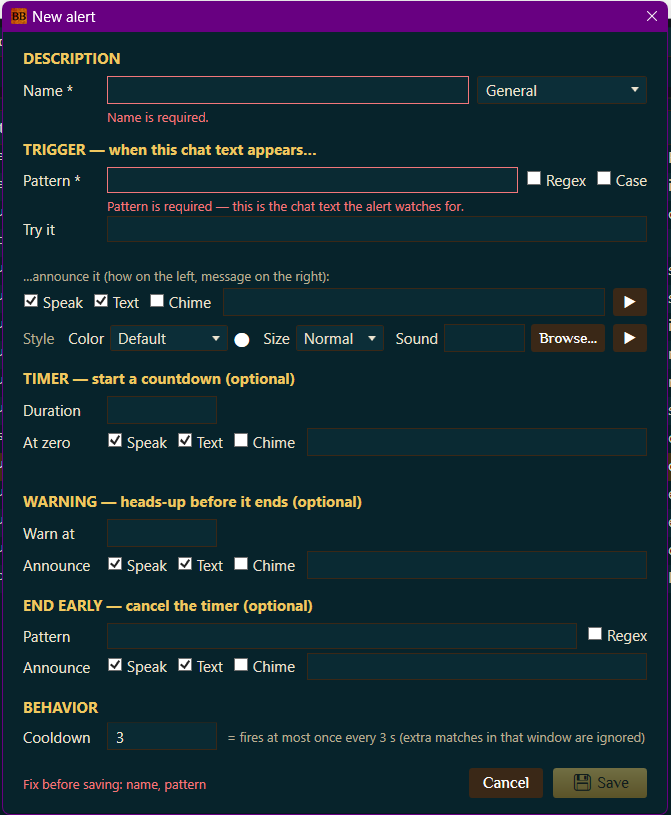
Click + Add alert in the toolbar to open the New Alert dialog. Every section is optional except Name and Pattern. The Save button stays disabled until both are filled.
Description
- Name: required. What this alert is called in your list.
- Category: folder. Pick an existing one or type a new name to create one.
Trigger
- Pattern: required. The text the alert watches for in the log.
- Regex checkbox: turn on if the pattern is a regular expression. Off means literal text.
- Case checkbox: turn on for case-sensitive matching. Off (the default) is case-insensitive.
- Try it: paste a real chat line here. You'll see whether it matches and you can audition the reaction without leaving the dialog.
Announce
- Speak / Text / Chime: pick any combination of reactions.
- The text field on the right is the phrase that gets spoken or shown. Click the play button to preview it.
- Style / Color / Size: appearance of the on-screen text (color picker and a size dropdown).
- Sound: the chime file. Browse to use your own
.wavor.mp3.
Timer (optional)
- Duration: how many seconds the countdown bar runs after this alert fires.
- At zero: reactions that fire when the bar finishes, with their own phrase.
Warning (optional)
- Warn at: seconds remaining when the warning fires. So 10 means "10 seconds before the timer ends, call out the warning."
- Announce: what the warning sounds and looks like.
End early (optional)
- Pattern: a log line that cancels the countdown. Useful when a buff drops early, a mob dies, or someone re-cures.
- Regex checkbox and Announce reactions work the same as the main Trigger section.
Behavior
- Cooldown: minimum seconds between firings. Anything that matches inside the cooldown window is silently dropped. Default 3 seconds; turn it up for chatty events.
Regex examples from real log lines
The Pattern field accepts standard .NET regex with named capture groups. You can plug captured names into the spoken phrase by referencing the group name in {braces}. A few patterns worth stealing:
- Charm dropped on a specific pet, calling out its name:
Pattern:^Your charm spell on (?<target>.+) wears off\.$
Phrase:charm broke on {target} - Anyone in your group dies:
Pattern:^(?<player>\w+) has been slain by (?<mob>.+)\.$
Phrase:{player} died to {mob} - A specific raid mob spawns:
Pattern:\b(?<mob>Lord Nagafen|Lady Vox|The Avatar of War)\b has emerged
Phrase:{mob} is up - You ran out of mana mid-cast:
Pattern:^Insufficient Mana to cast this spell\.$
Phrase:oom - Someone in chat says a keyword:
Pattern:^\w+ says, '(?<msg>.*\binc\b.*)'
Phrase:incoming: {msg}
Tip: ask an AI to write your regex
Regex is the kind of thing AI is genuinely good at. Open Claude, ChatGPT, or any chat assistant, paste two or three real log lines, and tell it what you want to capture. For example:
"Here are three EverQuest log lines: You feel yourself starting to appear.: Your charm spell on a dire wolf wears off.: Mortimer has been slain by a fearsome bear. Write a regex for each that captures the relevant subject as a named group. Use .NET syntax."
Paste the result into the Pattern field, hit Try it, and you're done. Even when the AI gets it slightly wrong, the Try-it box tells you immediately and you can ask for a fix.
Where to next
Stuck or want help dialing a tricky trigger? Drop into the BasaBots Discord. Sharing patterns is one of the things the community does best. Or jump straight in: