EverQuest Item Finder
Look up any item, mob, or quest and get the full picture: who drops what and how often, a mob's stats and loot table, every step of a quest, and everything you're carrying or have ever looted.
1. About the tool
The lookup tools answer the three questions you ask most in an old-school MMO: where does this item drop, what does this mob have, and how do I finish this quest. Search an item and you get every mob that drops it, with drop percent, era, and rarity. Search or target a mob and you get its stats, resists, and full loot table. The more you play, the sharper the drop rates get, because your own kills and loot feed the numbers.
The window has three tabs. Item Search is the catalog, covered first. Loot History is everything you've picked up, and Your Loot is everything you're carrying right now: both are covered in section 5.
2. How it works
Lookups run against a built-in database that ships with the app, so item and quest searches work whether or not the game is running. Mob lookup can also read your current target live when the game is open, so targeting a mob pulls its page up instantly.
Two things make the drop rates better than a static wiki:
- Your own data. Every kill and loot you make builds per-tier drop-rate numbers, so the odds sharpen the more you camp a spot.
- Community data (optional). If you opt in, anonymous, aggregated sightings from other players pool together to tighten every loot table. It's never tied to your account, email, or character.
3. UI overview
Search and era
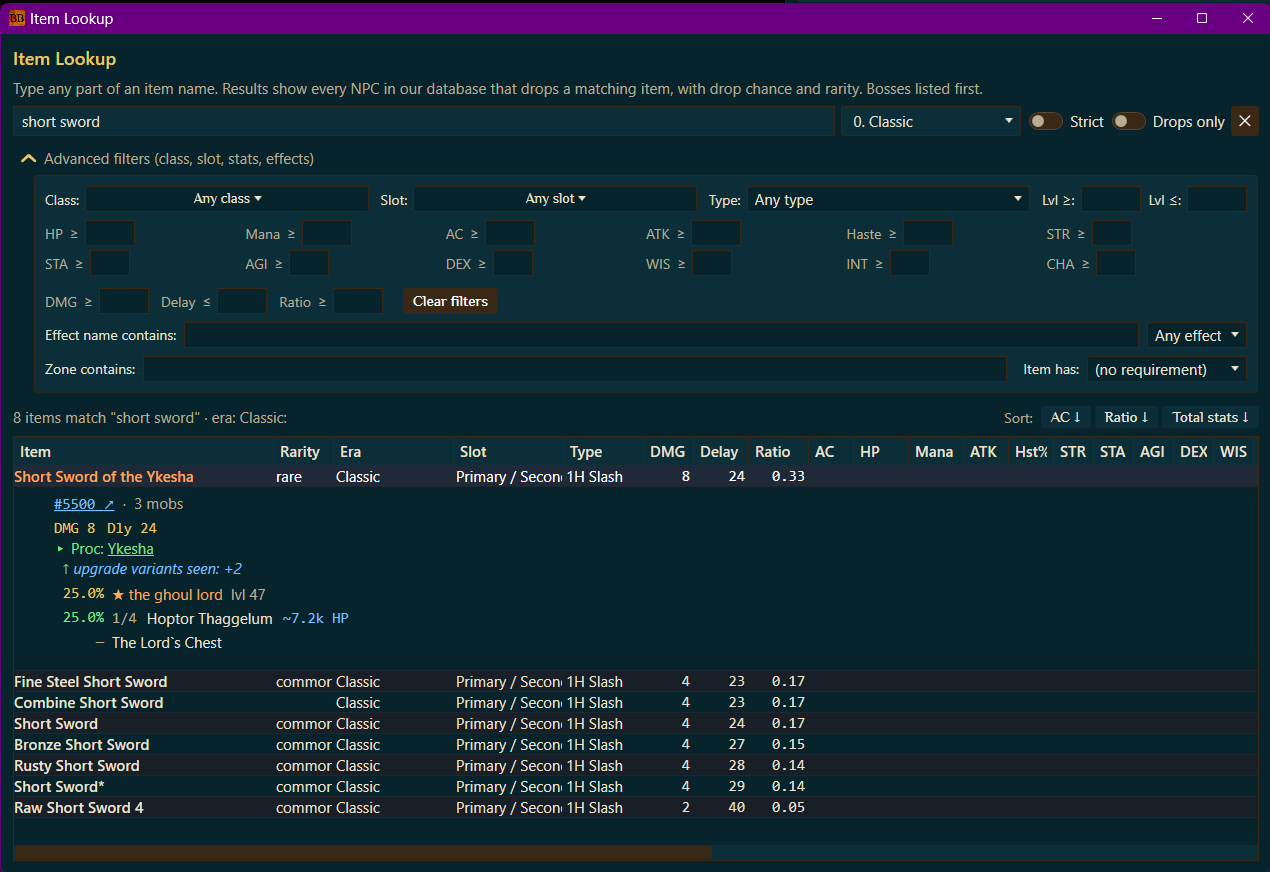
- Search box: type any part of an item name (two characters minimum). Results update as you type, with bosses listed first.
- Era selector: defaults to All eras; pick one to limit results to a single expansion, handy on classic-era servers where the full catalog isn't relevant yet.
- Strict: off by default. Turn it on to require real drop evidence plus an era match, which hides catalog-only items whose era is just a name-match. (Truly drop-less classics like the Manastone also hide under Strict, so leave it off to see those.)
- Drops only: show only items with at least one confirmed mob drop, hiding quest rewards, vendor goods, and tradeskill output.
Advanced filters
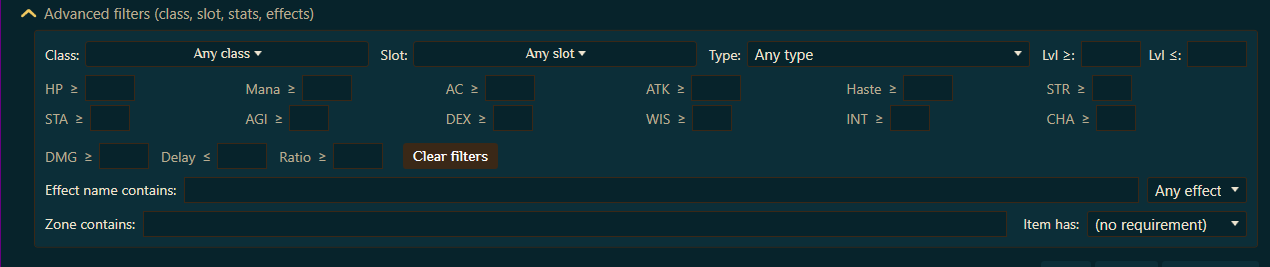
Open Advanced filters for the full grid. You can constrain by:
- Class, slot, type, level: the basics: what can equip it, where it goes, and the level band.
- Stat minimums: HP, Mana, AC, ATK, Haste, and every attribute (STR, STA, AGI, DEX, WIS, INT, CHA). Set a floor and only items that meet it show.
- Weapon math: DMG, Delay, and Ratio, for finding the best ratio weapon in a slot.
- Effect name contains + effect type (proc / click / worn / focus): hunt for a specific clicky or focus effect.
- Zone contains and Item has (requirement): narrow by where it drops or what it needs.
- Clear filters resets the grid in one click.
Results table

Each result row shows the item's rarity, era, slot, type, and the stat columns. The Sort buttons (AC, Ratio, Total stats) re-rank the list. Click a row to expand it: you get the item's damage and delay, its proc or effect, how many upgrade variants exist, and every mob that drops it with the drop percentage, named mobs starred and listed first.
4. Basic use: find where an item drops
Step 1. Click the Items button to open Item Lookup.
Step 2. Type any part of the name, for example short sword. Matching items fill the table, bosses first.
Step 3. Click the item you want. It expands to show every mob that drops it and the drop percent for each, so you know exactly where to camp.
5. Advanced use
Mob lookup and the loot table
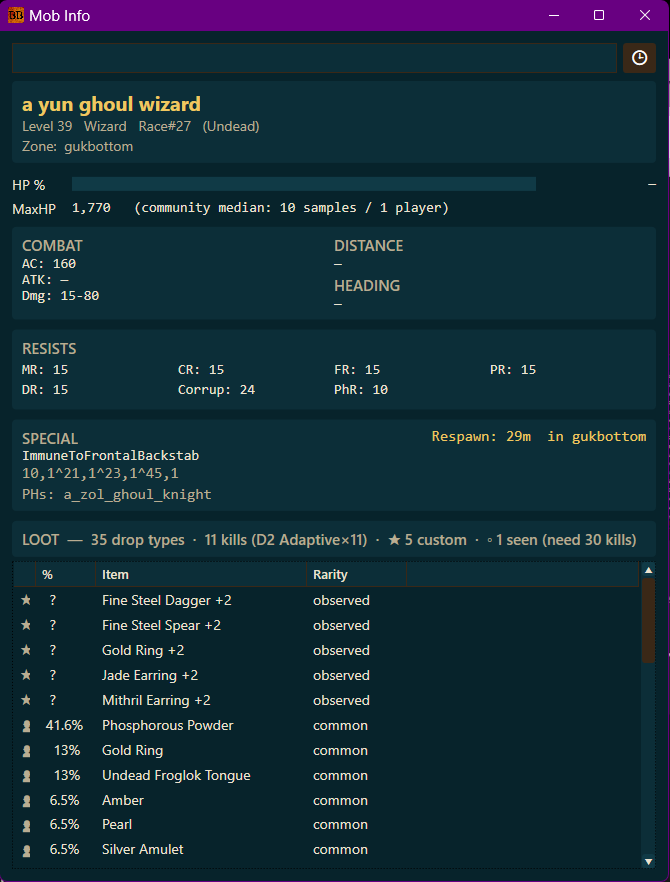
Search a mob by name, or target it in-game to pull its page automatically. The Mob Info window gives you the full read:
- Identity: level, class, race, zone, and whether it's undead.
- Max HP: with a community median and sample count so you know how trustworthy the number is.
- Combat: AC, attack, and damage range.
- Resists: every resist (MR, CR, FR, PR, DR, and more), so you pick the right spells.
- Special: immunities, respawn time, and placeholders (PHs) for camping a named.
- Loot: the full table with drop percent and rarity per item, including drops only seen in community data.
Quest lookup
The same lookup covers quests: pull up any quest for its items, turn-in steps, zones, and rewards across every era. It's the read-only companion to the live quest tracker, handy when you just want to check a turn-in without pinning the whole quest.
Loot History: everything you've picked up
The Loot History tab is a running record of every item that came out of a corpse while you were watching, newest first, taken from your log. It answers the questions the catalog can't: did that named actually drop it, and how long ago? Each row carries the time, the item, the mob that dropped it, the zone, and a Quest? flag.
- ★ in the Quest? column means a quest uses that item. Click it to jump straight to that quest on the Quests tab. ☁ means it's a Plane of Sky item, and opens the Plane of Sky tracker instead.
- Click a row to expand it in place: stats, where else it drops, and which quests want it. Hover for the item card.
- Right-click a mob for "See what this mob drops", which opens its full loot table in Mob Info, custom EQL mobs included.
- Filter the list by item or mob name with the box at the top. It keeps your last 50,000 looted items by default; change it in Options & Stats → Loot History, anywhere from 10 to 100,000.
Your Loot: everything you're carrying
The Your Loot tab is your whole inventory in one sortable table, straight from the game: equipped gear, general inventory, and every bag, with each item's full catalog detail beside it, rather than a grid of icons you have to hover one at a time.
- Every stat as a column: location, quantity, category, rarity, era, slot, type, DMG / Delay / Ratio, AC, HP, Mana, ATK, Haste, every attribute, and every resist. Click a header to sort, so "what's my best-ratio weapon" or "what am I carrying with the most HP" is one click.
- Equipped gear names its slot (Head, Chest, Feet, Primary, and so on), so you can see what's actually worn versus what's along for the ride.
- Filters: search by name, narrow to Equipped / Inventory / Bags, pick a category (Weapon, Armor, Food, Tradeskill, Mote…), or tick Quest items only to see just the ★ pieces a quest wants. That last one is the fast way to find out whether you're already carrying a turn-in.
- It keeps itself up to date as you loot and sell, and there's a ↻ Refresh if you want to force it. It needs the 🧠 Memory toggle on and the game running; after the first read, the list stays viewable offline.
Sharper drop rates the more you play
The drop percentages aren't frozen. Your own kills build the numbers, and if you opt into community data, pooled anonymous sightings tighten every table. A camp you've farmed for an hour shows drop rates you can actually trust, not a wiki's rounded guess. A small marker next to each loot row tells you where its number comes from:
- ● your rates: you've killed this mob enough times in this zone that the percentage is computed from your kills, not the baseline.
- ◦ seen: you've witnessed the drop, but not enough kills yet for a trusted rate, so the percentage is still the database baseline.
- ★ custom: a drop you've seen that isn't in the database at all.
- 👥 community: a rate pooled from other players' anonymous data.
- (no marker): the database baseline, before any observation.
Where to next
Hunting a specific drop and want a second opinion on the best camp? The BasaBots Discord is the place. Or jump in: