EverQuest Quest Tracker
Whether you're on the Plane of Sky grind or your class epic, the app watches your loot and ticks items off as you find them.
1. About the tool
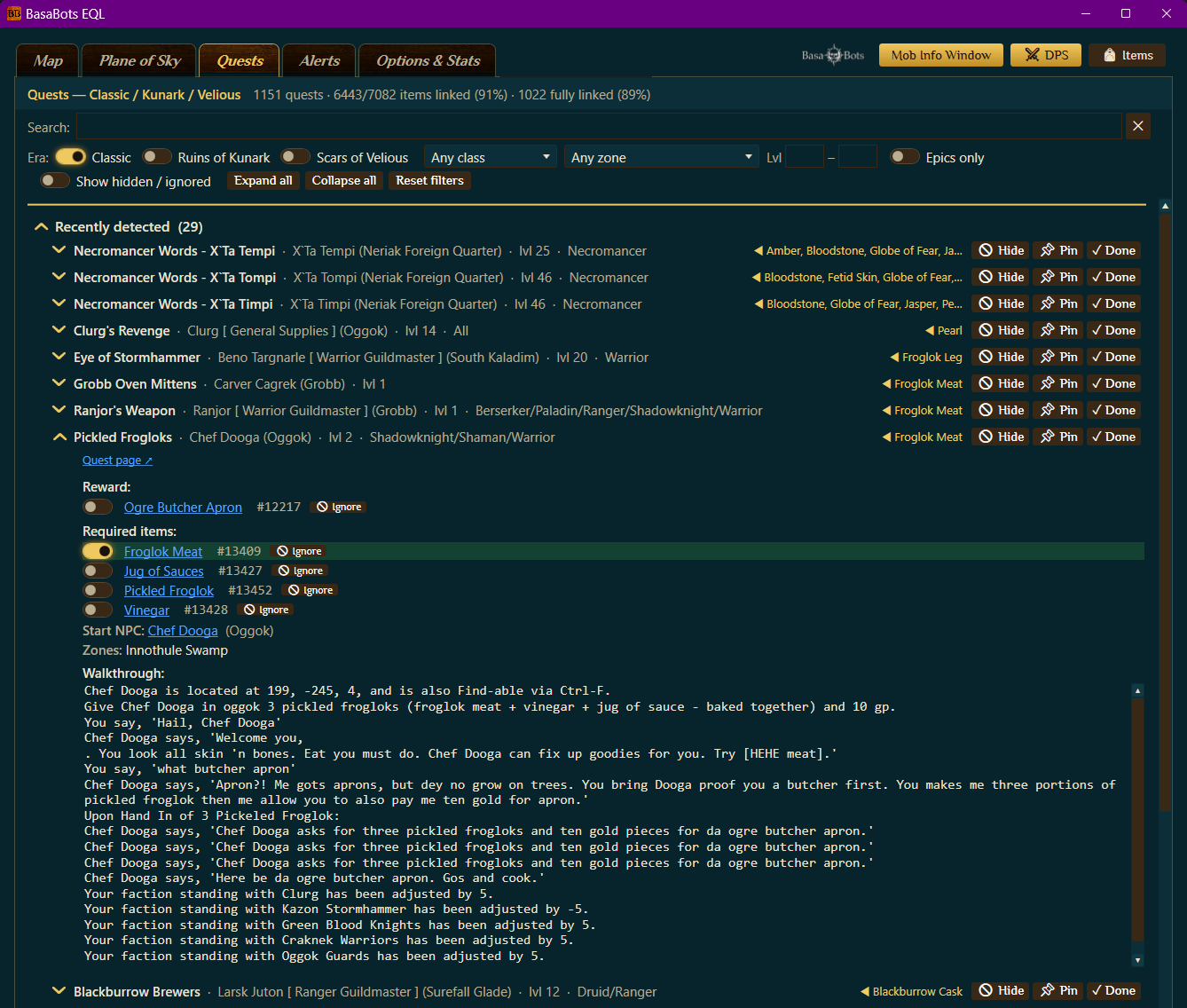
Quest tracking does two things. It's a browser for more than 1,800 quests across every era that you can filter and search, growing as custom EverQuest Legends quests are discovered, and it's a live tracker that watches what you loot and checks items off the quests you're running. Loot a quest item and it chimes, then surfaces the matching quest automatically, so you never have to remember which drop belonged to which turn-in. The Plane of Sky grind gets its own dedicated tracker for all 16 class item quests.
2. How it works
Quest tracking reads your EverQuest log to see what you loot. When a line shows you picking up an item the app recognizes as a quest item, it matches it to the quest and ticks it off, live.
Logging must be on for auto-detection to work. Same one-time step as the rest of the app:
- In EverQuest, type
/log onand press Enter. - The browser works without logging, but the automatic check-off needs it so the app can see your loot.
Your own loot ("You have looted ...") logs as long as logging is on. To also catch what your group-mates loot, make sure the Loot Messages chat filter is set to show (Options → Filters), the same place the DPS meter needs its combat filters. Already camped a while with a filter off? Use Re-scan log for past loot to walk the existing log and credit anything it missed.
3. UI overview
Filters and search

The bar across the top of the Quests tab narrows the list to what you care about:
- Search: type any part of a quest name, NPC, required item, reward, zone, or class.
- Era checkboxes (Classic, Ruins of Kunark, Scars of Velious): tick the eras your server runs so you aren't shown quests from content that doesn't exist yet.
- Class: show only quests for the selected class (quests tagged "All" always match).
- Zone: show quests that start in, or send you to, a zone.
- Lvl: a minimum and maximum level box to bracket what you can do.
- Epics only: just the class Epic (1.0) quests.
- Custom only: just the custom EverQuest Legends quests, the ones found from live turn-ins rather than the bundled catalog. This is the fast way to see what EQL added that no wiki covers.
- Show hidden / ignored: bring back quests you've hidden and items you've ignored so you can restore them.
- Expand all / Collapse all and Reset filters round out the bar.
By default, with no filters set, the list shows just your Pinned, Recently detected, and Completed quests. Search or set a filter to browse the full catalog.
Quest entries
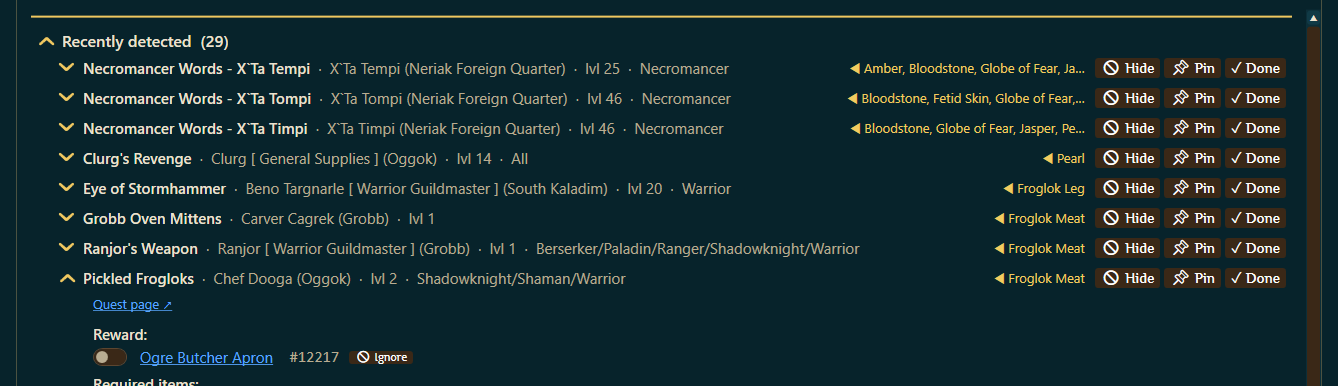
Each quest expands to the full picture: a Quest page link, its Reward and Required items (every item has a checkbox the auto-detector ticks for you), the Faction requirement, the Start NPC, the related Zones and Creatures, and a step-by-step Walkthrough. Item names are clickable to open Item Lookup; NPC and creature names open the Mob Info window. Each quest header carries three buttons:
- 📌 Pin: pin the quest to the top section so it stays in reach. Pins carry across sessions.
- 🚫 Hide: tuck a quest you're not running out of the list (bring it back with "Show hidden / ignored").
- ✓ Done: mark it complete and move it to the Completed section.
Per item, a 🚫 Ignore / ↩ Track toggle lets you stop a basic drop (bone chips, backpacks) from surfacing quests, while still counting it silently toward progress.
4. Basic use: find and pin a quest
Step 1. Open the Quests tab. The list shows recently detected quests up top.
Step 2. Use the filters (or the search box) to find the quest you want. Set Epics only if you're chasing your epic, or filter by class and zone for everything else.
Step 3. Expand the quest to read its required items and walkthrough, then pin it so it stays at the top and the ones you aren't running drop out of the way. Your pins carry across sessions.
From here, just play. The next section is what happens automatically while you do.
5. Advanced use
Auto loot detection
This is the feature that earns its keep. With logging on, when you loot an item the app recognizes, it chimes, surfaces the matching quest, and ticks that item off the required list, without you opening anything. On a long collection quest with a dozen drops, you just loot and the checklist fills itself in. If a single item belongs to several quests, it checks all of them.
The Plane of Sky tracker
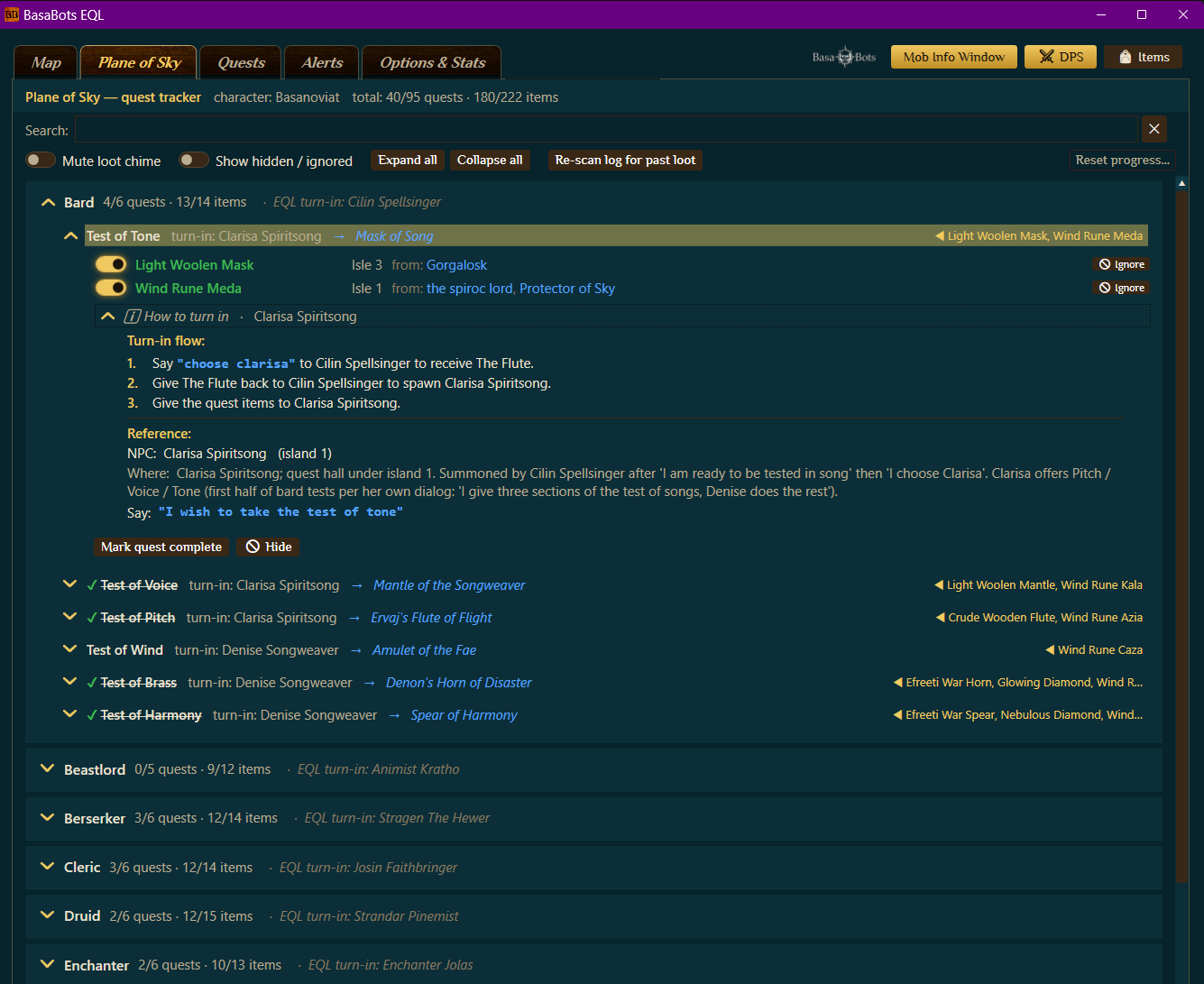
On EverQuest Legends, the Plane of Sky quests are how you unlock new primary classes, so finishing them is a real progression goal, not just a vanity chase. BasaBots EQL gives Plane of Sky its own tab to track that unlock progress for every class, all 16 class item quests, with the steps you need in one place. The quests have also been updated for EverQuest Legends' custom item turn-ins, so the required items and turn-ins match the EQL server, not classic EverQuest.
Important: once you've made a Plane of Sky item, don't delete it. Destroying a completed item can reset your unlock progress for that quest. Keep the items until you've actually unlocked the class.
Everything you need is in one place:
- Auto check-off as you loot, same as the rest of the tracker, with a chime the first time you loot a quest item (silence it with Mute loot chime).
- Turn-in details per quest: the turn-in NPC and its island number, a "Where" location hint, the exact /say phrase to recite, and the summoning Hub and its /say phrase when a quest mob has to be summoned.
- Numbered turn-in steps spelling out the full sequence for each class item.
- Mark quest complete per quest, plus Expand all / Collapse all to keep the board tidy.
- Re-scan log for past loot: walk your existing log and retroactively credit items that didn't match before (handy after an EQL upgrade-tier rename).
Where to next
Stuck on a turn-in or want to compare notes on a long chain? The BasaBots Discord is the place. Or jump in: